

Running LLMs on Kubernetes

Large language models (LLMs) power many modern apps. Chatbots, coding helpers, and document tools all use them. The question isn’t whether you need LLMs, but how to run them well. Kubernetes helps you deploy and manage these heavy workloads next to your other services.
Running LLMs on Kubernetes gives you a few benefits. You get a standard way to deploy them. You can easily manage GPU resources. Furthermore, you can scale up when demand grows. Most importantly, though, you can keep your data private by hosting models yourself instead of calling external APIs.
Here, we’ll look at two ways to deploy LLMs on Kubernetes. First, we’ll cover Ollama for simple setups. Then, we’ll explore vLLM Production Stack for high-traffic scenarios.
Ollama
Ollama is popular because it’s easy to use. You download a model, and it just works. The Ollama Helm Chart brings this same ease to Kubernetes.
What You Need
For CPU-only use, you need Kubernetes 1.16.0 or newer. For GPU support with NVIDIA or AMD cards, you need Kubernetes 1.26.0 or newer.
How to Install
Add the Helm repository and install:
helm repo add otwld https://helm.otwld.com/
helm repo update
helm install ollama otwld/ollama --namespace ollama --create-namespace
This sets up Ollama with good defaults. The service runs on port 11434. You
can use the normal Ollama tools to talk to it.
To test your deployment, forward the port to your local machine and run a model:
kubectl port-forward -n ollama svc/ollama 11434:11434Then, in another terminal, you can interact with Ollama:
curl http://localhost:11434/api/generate -d '{
  "model": "llama3.2:1b",
  "prompt": "Why is the sky blue?",
  "stream": false
}'
Adding GPU Support
To use a GPU, create a file called values.yaml:
ollama:
  gpu:
    enabled: true
    type: "nvidia"
    number: 1
Then update the install:
helm upgrade ollama otwld/ollama --namespace ollama --values values.yamlDownloading Models Early
Ollama downloads models when you first ask for them. This can be slow. You can tell it to download models when the pod starts:
ollama:
  gpu:
    enabled: true
    type: "nvidia"
    number: 1
  models:
    pull:
      - llama3.2:1b
Making Custom Models
You can also make custom versions of models with different settings:
ollama:
  models:
    create:
      - name: llama3.2-1b-large-context
        template: |
          FROM llama3.2:1b
          PARAMETER num_ctx 32768
    run:
      - llama3.2-1b-large-context
This creates a version of Llama 3.2 that can handle longer text.
Opening Access from Outside
To let people reach the API from outside the cluster, add an Ingress:
ollama:
  models:
    pull:
      - llama3.2:1b
ingress:
  enabled: true
  hosts:
    - host: ollama.example.com
      paths:
        - path: /
          pathType: Prefix
Now you can reach the API at ollama.example.com.
When to Use Ollama
Ollama is great when you want things simple. It works well for getting started fast, running different models without much setup, or when you don’t need to handle lots of traffic. If you’ve used Ollama on your laptop, using it on Kubernetes will feel familiar.
vLLM
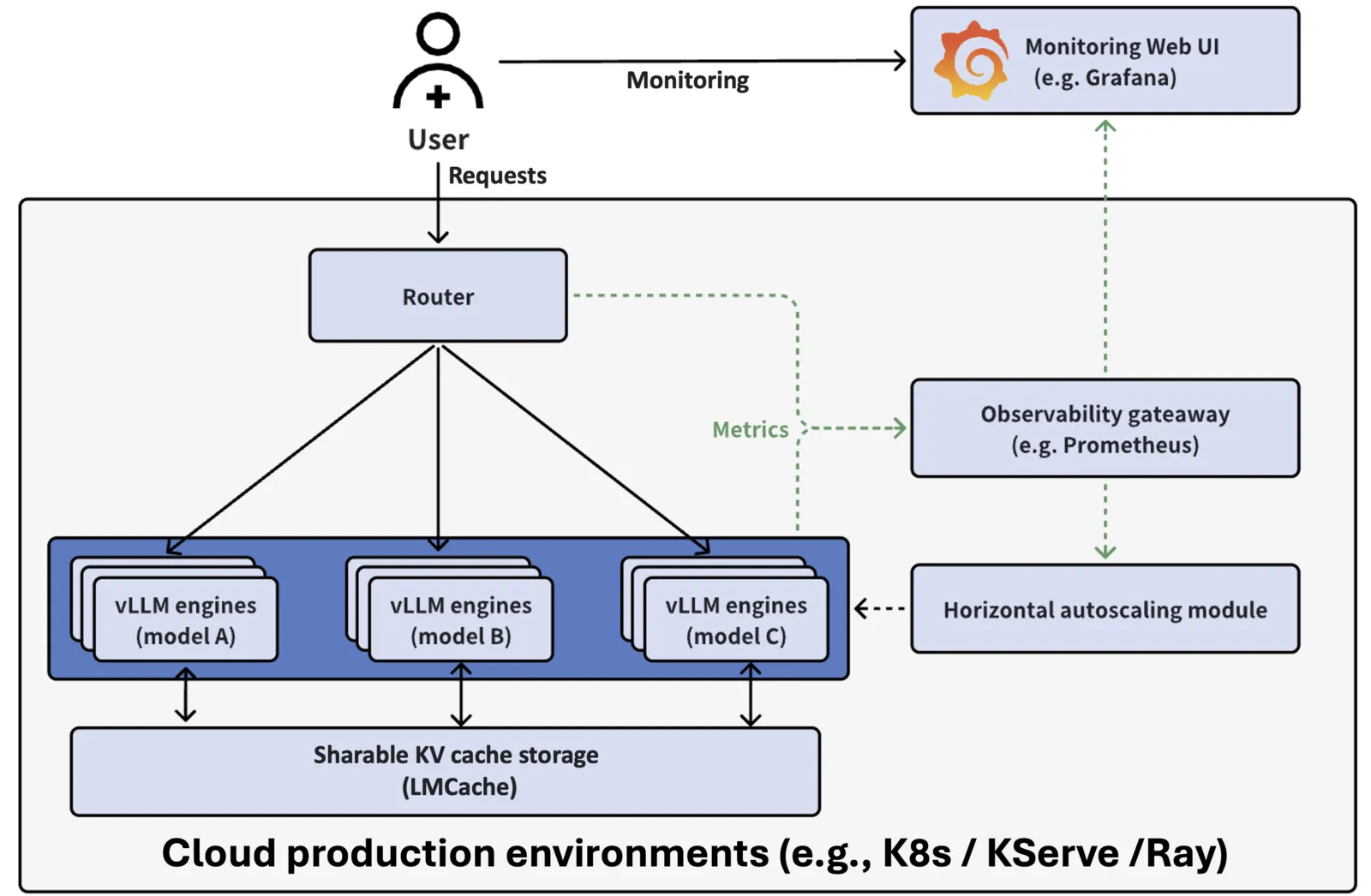
vLLM is built for speed. It uses performance optimizations like Paged Attention, Continuous Batching, and Prefix Caching to handle many requests at once. The vLLM Production Stack wraps vLLM in a Kubernetes-friendly package with routing, monitoring, and caching.
How It Works
The stack has three main parts. First, serving engines run the LLMs. Second, a router sends requests to the right place. Third, monitoring tools (Prometheus and Grafana) show you what’s happening.
This setup lets you grow from one instance to many without changing your app code. The router uses an API that works like OpenAI’s, so you can swap it in easily.
How to Install
Add the Helm repository and install with a config file:
helm repo add vllm https://vllm-project.github.io/production-stack
helm install vllm vllm/vllm-stack -f values.yaml
A simple values.yaml looks like this:
servingEngineSpec:
  runtimeClassName: ""
  modelSpec:
    - name: "llama3"
      repository: "vllm/vllm-openai"
      tag: "latest"
      modelURL: "meta-llama/Llama-3.2-3B-Instruct"
      replicaCount: 1
      requestCPU: 6
      requestMemory: "16Gi"
      requestGPU: 1
After it’s ready, you’ll see two pods. One is the router. One runs the model:
NAME                                          READY   STATUS    AGE
vllm-deployment-router-859d8fb668-2x2b7       1/1     Running   2m
vllm-llama3-deployment-vllm-84dfc9bd7-vb9bs   1/1     Running   2m
Using the API
Forward the router to your machine:
kubectl port-forward svc/vllm-router-service 30080:80Check which models are available:
curl http://localhost:30080/v1/modelsSend a chat message:
curl -X POST http://localhost:30080/v1/chat/completions \
  -H "Content-Type: application/json" \
  -d '{
    "model": "meta-llama/Llama-3.2-3B-Instruct",
    "messages": [{"role": "user", "content": "Why is the sky blue?"}]
  }'
Running More Than One Model
You can run different models at the same time. The router sends each request to the right one:
servingEngineSpec:
  modelSpec:
    - name: "llama3"
      repository: "vllm/vllm-openai"
      tag: "latest"
      modelURL: "meta-llama/Llama-3.2-3B-Instruct"
      replicaCount: 1
      requestCPU: 6
      requestMemory: "16Gi"
      requestGPU: 1
    - name: "mistral"
      repository: "vllm/vllm-openai"
      tag: "latest"
      modelURL: "mistralai/Mistral-7B-Instruct-v0.3"
      replicaCount: 1
      requestCPU: 6
      requestMemory: "24Gi"
      requestGPU: 1
Logging In to Hugging Face
Some models need a Hugging Face account. You can add your token like this:
servingEngineSpec:
  modelSpec:
    - name: "llama3"
      repository: "vllm/vllm-openai"
      tag: "latest"
      modelURL: "meta-llama/Llama-3.2-3B-Instruct"
      replicaCount: 1
      requestCPU: 6
      requestMemory: "16Gi"
      requestGPU: 1
      env:
        - name: HF_TOKEN
          value: "your-huggingface-token"
For real deployments, store the token in a Kubernetes Secret instead.
Watching How It Runs
The stack comes with a Grafana dashboard. It shows you how many instances are healthy, how fast requests finish, how long users wait for the first response, how many requests are running or waiting, and how much GPU memory the cache uses. This helps you spot problems and plan for growth.
When to Use vLLM
Use vLLM and its production stack when you need to handle lots of requests fast. Its router is smart about reusing cached work, which saves time and money. The OpenAI-style API makes it easy to plug into existing apps. The monitoring tools help you run it well in production.
Wrapping Up
Ollama and vLLM serve different needs.
Ollama with its Helm chart gets you running fast with little setup. It’s good for development, lighter workloads, and teams that want things simple.
vLLM Production Stack gives you the tools for heavy traffic. The router, multi-model support, and monitoring make it fit for production where speed and uptime matter.
Both use standard Kubernetes and Helm, so they’ll feel familiar if you know containers. Pick based on how much traffic you expect and how much complexity you’re willing to manage.
“Ollama runs one, vLLM a batch - take your time, pick a match”
Lena F.
Do you want to run your own LLMs on Kubernetes? Check out our Pragmatic AI Adoption service and book your free workshop.
 RSS
RSS